How to create and track popups on your website
Popups are a great way to engage visitors, promote special offers, collect leads, or share important announcements directly on your LMS website. With Uteach, you can create different popup layouts, customize their content, choose where they appear, and track their performance.
Popup Actions
From the popup list, you can manage each popup using the action icons:

Preview – See how the popup appears to visitors.
Edit – Update the popup content, layout, or settings.
Analytics – View popup performance statistics.
Delete – Remove the popup from your website.
Creating a New Popup
From your admin dashboard, go to Marketing → Popups and click Create New Popup.
You will see two main popup categories:
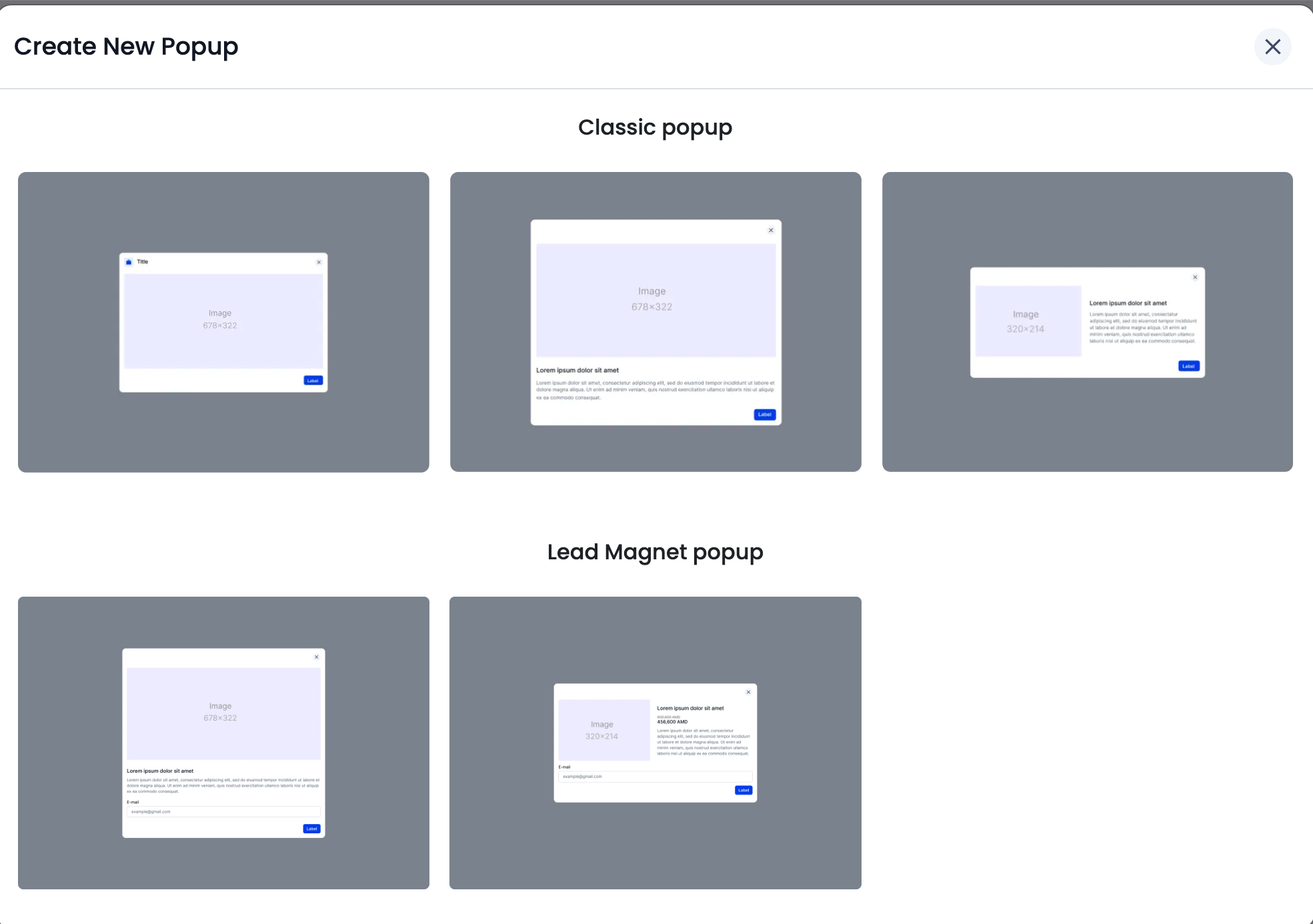
Classic Popup
Classic popups are useful for announcements, promotions, discounts, course offers, or important messages.
There are three classic popup layouts available:
Image-only popup
Use this layout when you want to show only a visual banner or promotional image.
Image with text below
Use this layout when you want to add an image, title, description, and button.
Image and text side by side
Use this layout when you want the image and message to appear next to each other in a cleaner promotional format.
Lead Magnet Popup
Lead magnet popups are designed to help you capture leads by adding an email field.
There are two lead magnet layouts available:
Image with email field below
Use this layout to show an image, description, email input field, and button.
Image and lead form side by side
Use this layout when you want to present the image and the email capture form next to each other.
This type is useful for free guides, newsletters, webinars, downloadable materials, or any campaign where you want visitors to leave their email address.
Customize Your Popup
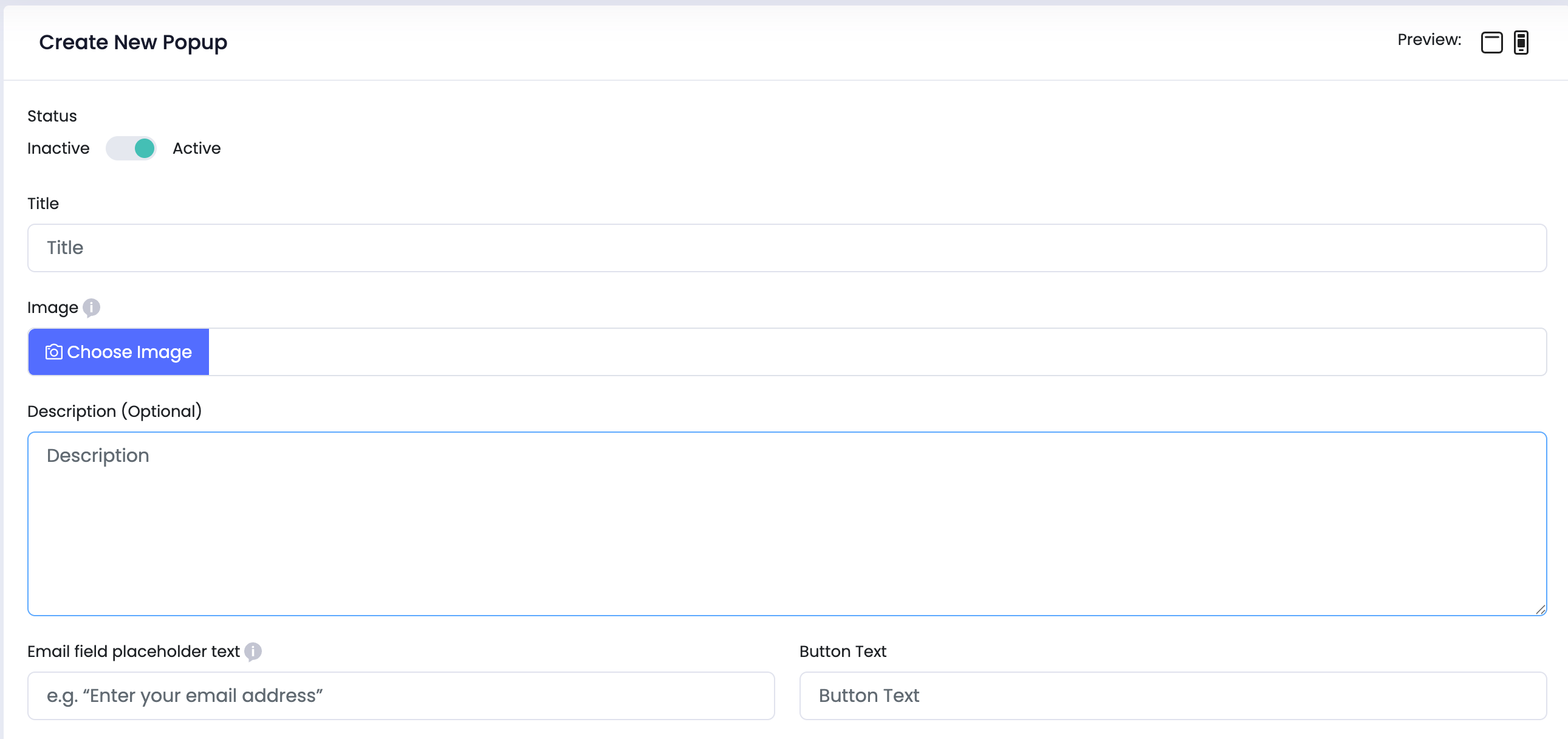
After choosing a popup layout, fill in the popup details:
Status – Set the popup as Active or Inactive.
Title – Add a short and clear title, such as “Limited Offer: 30% Off!”
Image – Upload a relevant image or banner.
Description – Add supporting text about your offer, announcement, or campaign.
Price and Old Price – If your popup promotes a paid offer, you can add the current price and old price.
Button Link – Add the URL where visitors should be redirected after clicking the button.
Button Text – Add the call-to-action text, such as “Enroll Now”, “Learn More”, or “Download”.
For lead magnet popups, you can also add an Email field placeholder text, for example: “Enter your email address”.
Select Visibility
In the Select Visibility dropdown, choose where the popup should appear:
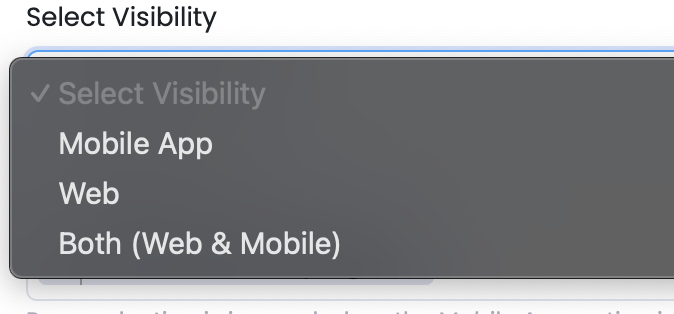
Mobile – visible only in the mobile app
Web – visible only on the website
Both – visible on both web and mobile
Note: Page selection is ignored when the Mobile App option is selected.
Choose Pages
Under Show On Pages, select where the popup should appear. You can choose one or multiple pages depending on your campaign needs.
You can also use Show on Custom Page to display the popup only on a specific custom page.
Set Display Rules
Use the When to Show option to control when the popup appears:
On First Visit – the popup appears only once for each new visitor.
On Every Visit – the popup appears every time the page loads.
Once Per Day – the popup appears once every 24 hours for each visitor.
You can also set the Delay Time in seconds. For example, if you enter 5, the popup will appear 5 seconds after the visitor opens the page.
Preview, Save, and Activate
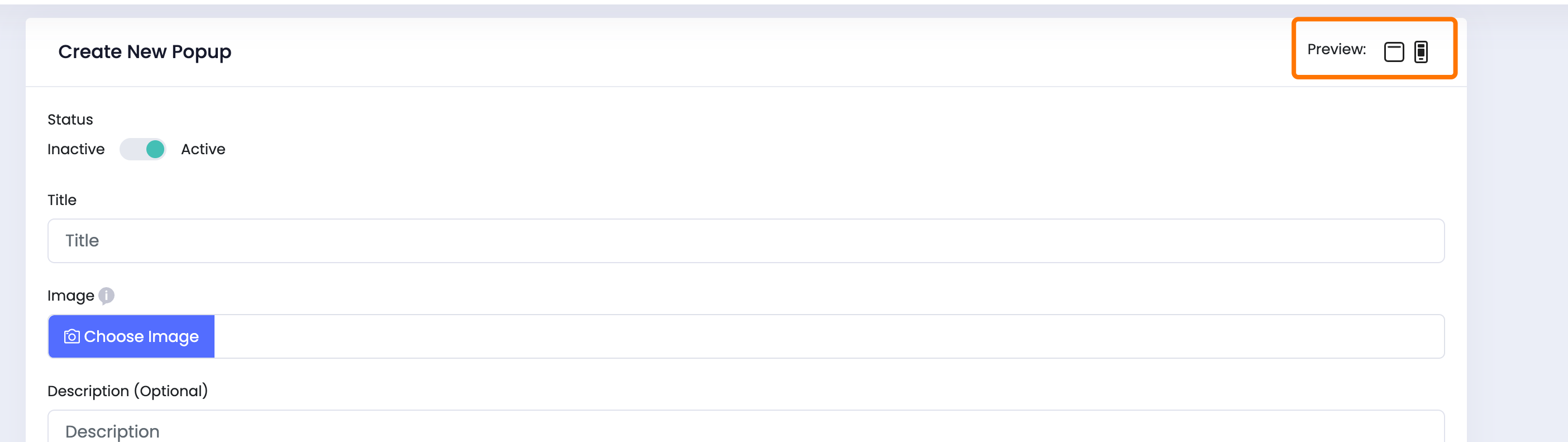
Click the Preview icons in the top-right corner to check how the popup will appear on different devices.
Once everything looks good, click Save. Then make sure the popup status is set to Active so it starts appearing on the selected pages.
Popup Analytics
You can monitor each popup’s performance from the Analytics section.
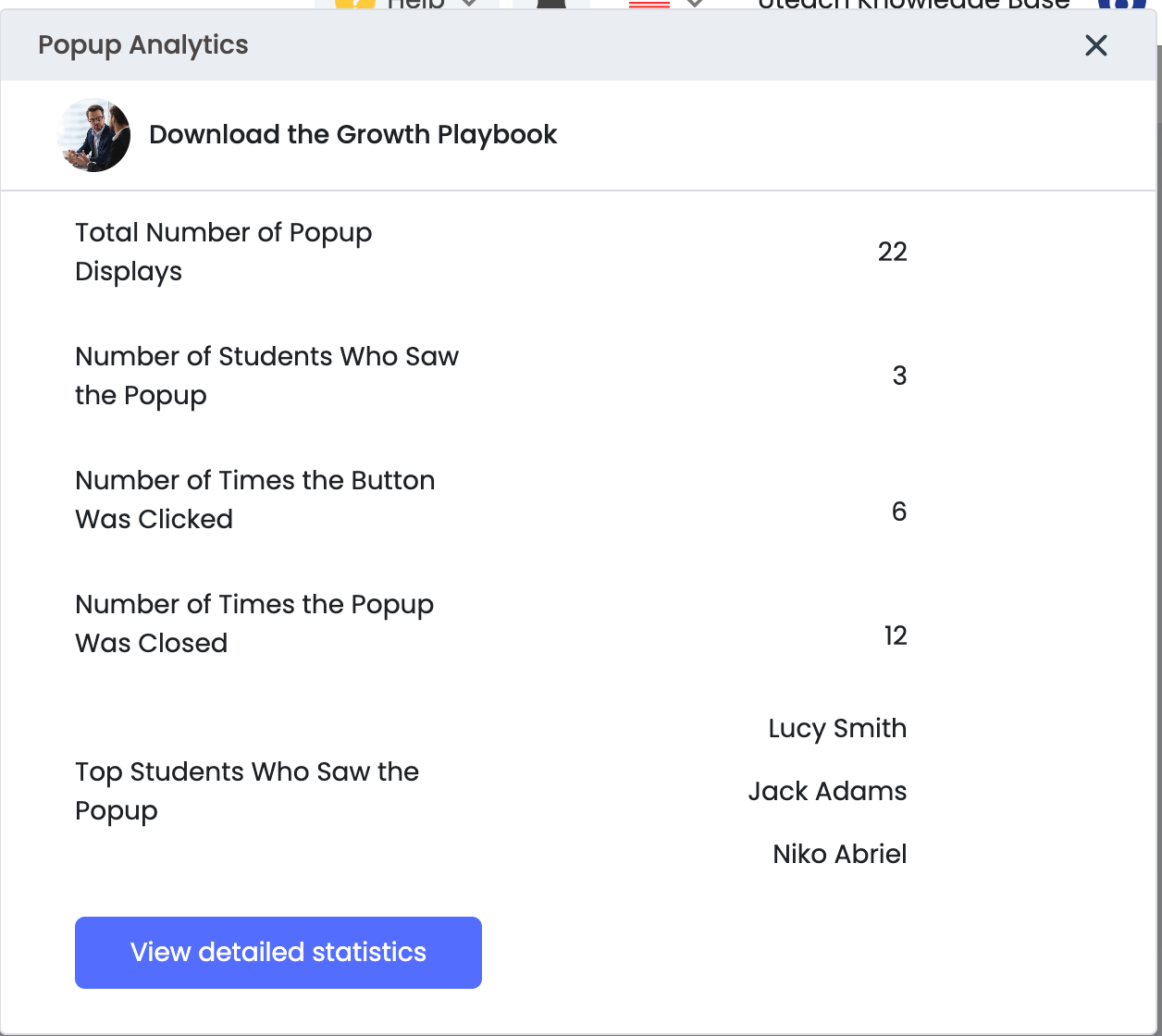
The analytics window shows general popup information, such as:
- Total number of popup displays
- Number of students who saw the popup
- Number of times the button was clicked
- Number of times the popup was closed
- Top students who saw the popup
To see deeper performance data, click View Detailed Statistics.
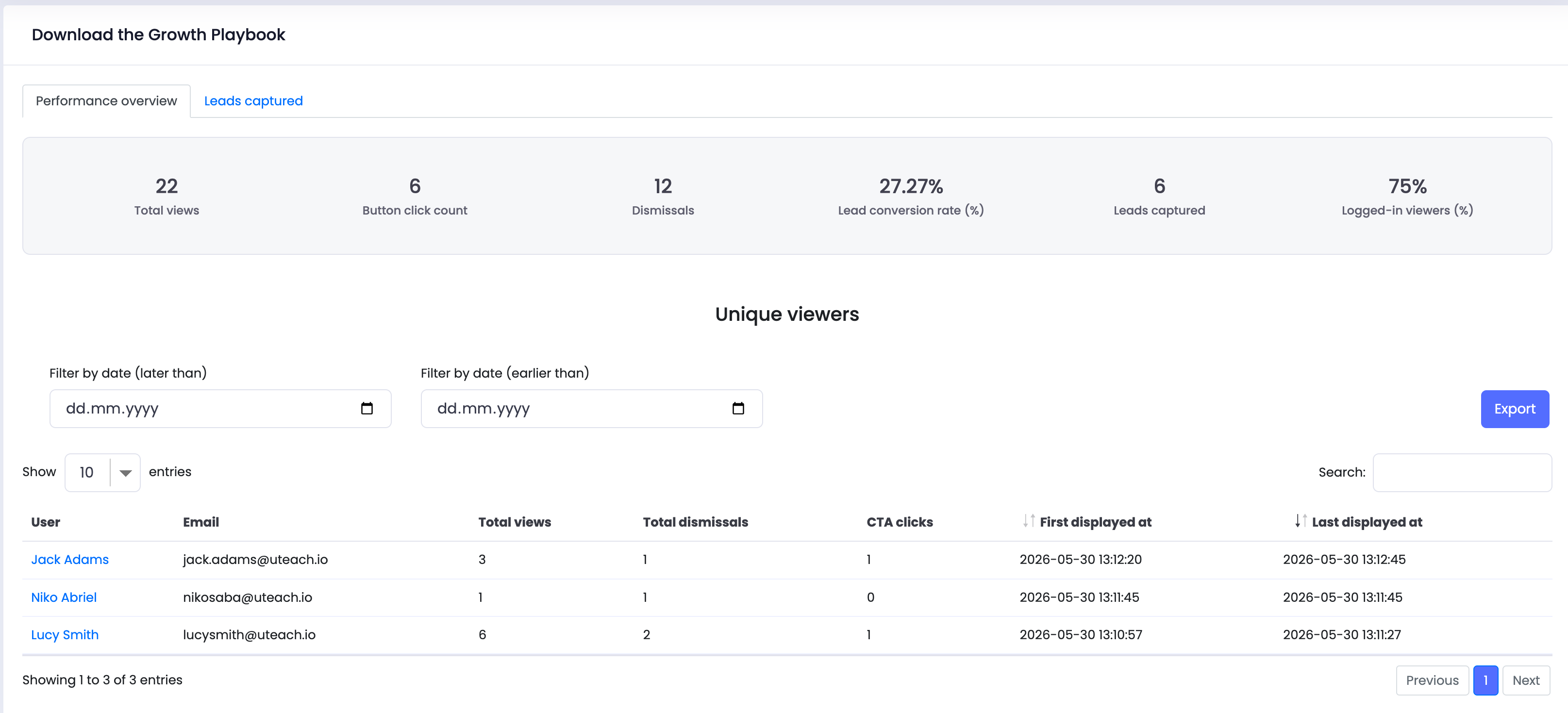
The detailed statistics page includes a performance overview with:
- Total views
- Button click count
- Dismissals
- Lead conversion rate
- Leads captured
- Logged-in viewers percentage
You can also view unique viewers, filter results by date, search users, and export the data.
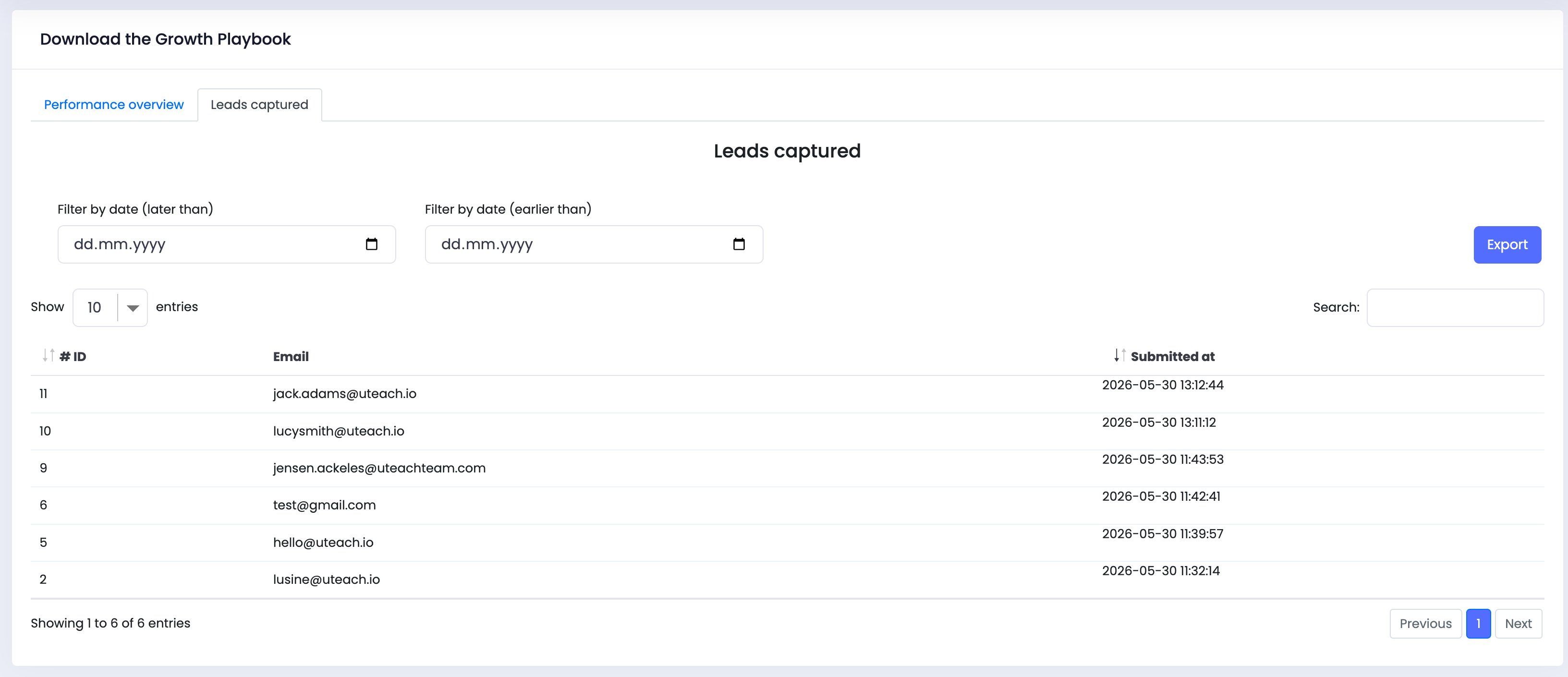
For lead magnet popups, you will also see a Leads Captured tab. This section displays the email addresses submitted through the popup, along with the submission date. You can use this information to follow up with potential leads.
Conclusion
Popups are an effective way to communicate with students, promote offers, increase course sales, and collect leads. With Uteach popup layouts and analytics, you can create targeted campaigns, track engagement, and improve your results over time.
Author![{"id":2,"user_id":25,"slug":"lusine-mkhitaryan","full_name":"Lusine Mkhitaryan","position":"Customer Support Specialist","tagline":"Customer Support Specialist","image":"uteach\/authors\/LxVlxPVHH6bKnNI51DR8-1743576946\/t02qfsy3cq2-u02u10sqk1q-727b0c81e36f-512.jpg","short_text":"I\u2019m a motivated Customer Support Specialist who thrives on making every customer experience smoother, more efficient, and more positive. \r\n\r\nI am dedicated to addressing customer needs with empathy, professionalism, and efficiency, always aiming to provide clear and effective solutions.\r\n\r\nMy approach emphasizes understanding the unique challenges customers face and finding creative ways to resolve them. I\u2019m passionate about streamlining support processes, optimizing workflows, and using innovative tools to deliver the best possible outcomes for customers.","education":"<ul><li>Bachelor's in English Language and Literature, Brusov State University\u00a0<\/li><li>Certified in Customer Service: Managing Customer Expectations<\/li><li>Certified in Innovative Customer Service Techniques<\/li><li>Certified in Working with Upset Customers<\/li><\/ul>","experience":"<ul><li>Customer Support Specialist at Uteach\u00a0<\/li><li>Digital Marketing Specialist at Munich Ventures\u00a0<\/li><li>Learning Platform Coordinator at WooChess\u00a0<\/li><li>E-commerce Administrator at Hafo.am\u00a0<\/li><li>Content Writer at Armenia Discovery<\/li><\/ul>","social_insta":null,"social_fb":null,"social_twitter":null,"social_linkedin":"https:\/\/www.linkedin.com\/in\/lusine-mkhitaryan","meta_title":"Lusine Mkhitaryan | Uteach Authors","meta_keywords":null,"meta_description":null,"json_ld":"{\r\n \"@context\": \"https:\/\/schema.org\",\r\n \"@type\": \"Person\",\r\n \"name\": \"Lusine Mkhitaryan\",\r\n \"jobTitle\": \"Customer Support Specialist\",\r\n \"worksFor\": {\r\n \"@type\": \"Organization\",\r\n \"name\": \"Uteach\",\r\n \"url\": \"https:\/\/uteach.io\"\r\n },\r\n \"alumniOf\": {\r\n \"@type\": \"EducationalOrganization\",\r\n \"name\": \"Brusov State University\"\r\n },\r\n \"hasCredential\": [\r\n {\r\n \"@type\": \"EducationalOccupationalCredential\",\r\n \"name\": \"Customer Service: Managing Customer Expectations\"\r\n },\r\n {\r\n \"@type\": \"EducationalOccupationalCredential\",\r\n \"name\": \"Innovative Customer Service Techniques\"\r\n },\r\n {\r\n \"@type\": \"EducationalOccupationalCredential\",\r\n \"name\": \"Working with Upset Customers\"\r\n }\r\n ],\r\n \"knowsAbout\": [\r\n \"Customer Support\",\r\n \"Workflow Optimization\",\r\n \"Support Automation\",\r\n \"Empathy in Service\",\r\n \"Conflict Resolution\"\r\n ],\r\n \"sameAs\": [\r\n \"https:\/\/www.linkedin.com\/in\/lusine-mkhitaryan\/\"\r\n ]\r\n}","created_at":"2025-01-24T16:10:14.000000Z","updated_at":"2025-04-24T22:38:45.000000Z"}](https://d35v9chtr4gec.cloudfront.net/uteach/authors/LxVlxPVHH6bKnNI51DR8-1743576946/t02qfsy3cq2-u02u10sqk1q-727b0c81e36f-512.jpg)